ERQIVA GUIDES
VPN not connecting: what should you check?
Rejected credentials, an endlessly connecting application or no Internet access: follow these checks in order before changing your configuration.

Does the connection button spin without results, a message reject your credentials, or Internet access disappear as soon as you enable the VPN? Start by identifying what is blocking it, then follow the checks in order. There is no need to immediately reinstall the application or change all its settings.
Identify the symptom
| What you see | First thing to check |
|---|---|
| No website opens, even without the VPN | The Internet connection or Wi-Fi portal |
| Credentials are rejected | VPN access information and service validity |
| Connection remains pending | The application, server or network restrictions |
| The VPN says connected but Internet no longer works | The selected server, configuration or a network conflict |
Note the exact message and when it appears. A screenshot can help, provided you hide credentials, personal addresses and other confidential information.
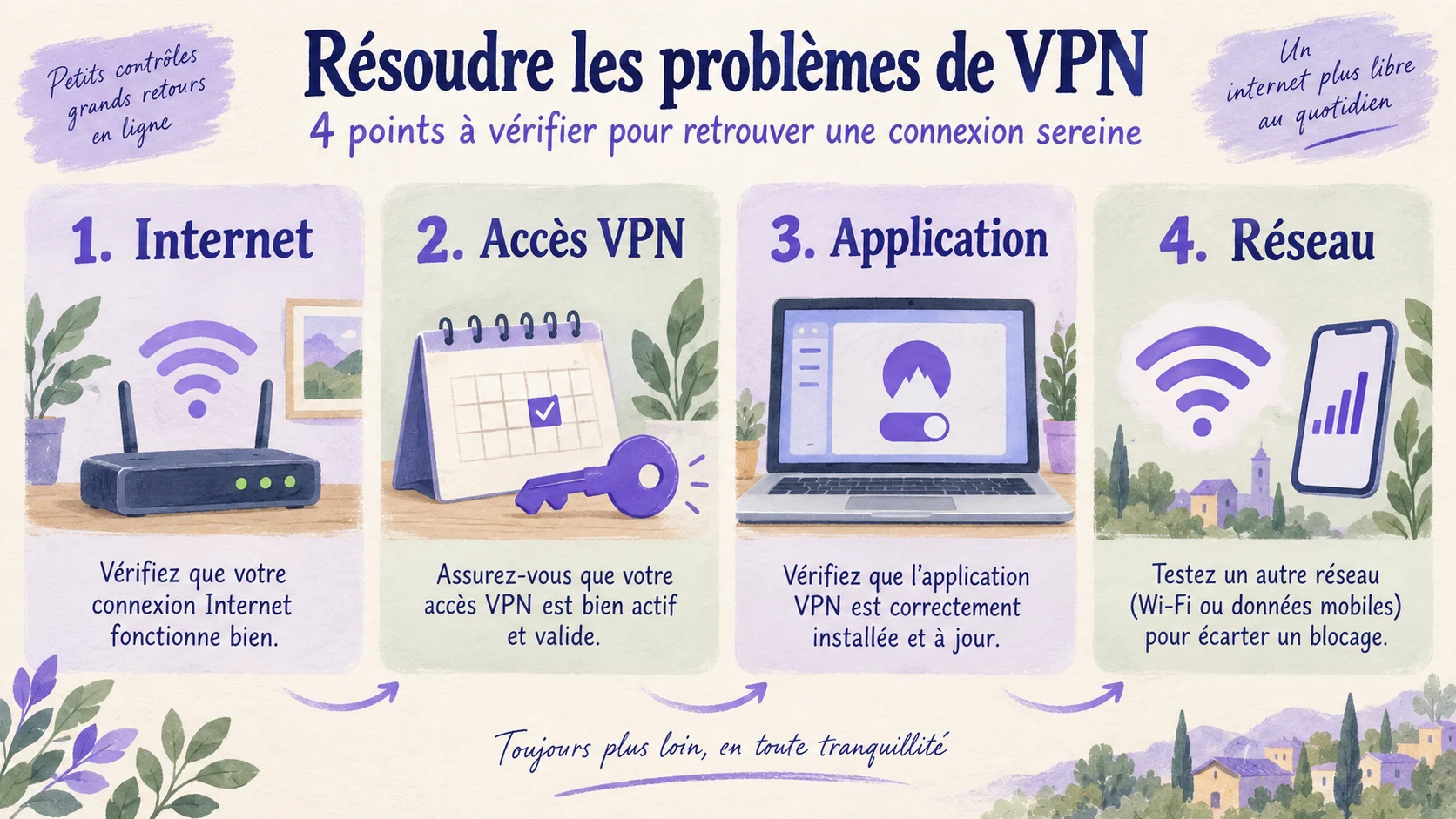
1. Check that the network provides Internet access
Disconnect the VPN for a brief test, then open a familiar page. During this check, traffic no longer benefits from the VPN tunnel: avoid sensitive operations on an unfamiliar network.
At a hotel, airport or café, you may need to complete an access portal before the VPN can connect. Join the establishment’s official network and complete this step. Do not bypass certificate warnings or enter your VPN password into this portal.
If Internet access remains unavailable, focus on Wi-Fi, mobile data or the router. A VPN needs a working Internet connection to establish its tunnel.
2. Check your Erqiva access
In your customer area, check that the service is active and its access period has not expired. An order does not necessarily mean access is already usable: check the associated service’s status carefully.
Then use the information intended for the VPN connection. Depending on how the service works, it may differ from the details used to sign in to your customer area.
- Check capital letters and similar-looking characters.
- Avoid spaces added at the beginning or end when copying and pasting.
- Make sure you use the settings for the correct access.
- After changing your VPN information, update it in the application.
If access has expired, consult the terms shown in your customer area before placing another order. Our guide to VPN plan durations helps you choose a suitable period.
3. Check the application and device
Close and restart the application. If necessary, restart the device and install available official updates.
Also check the date, time and time zone: an incorrect clock may interfere with certain connection checks. The automatic setting is usually the simplest choice.
On mobile, the operating system must allow the application to create a VPN connection. If this permission was refused, restart the procedure provided by the application and check the system’s request. Do not accept a profile from an unknown source.
To restore the correct settings, follow our installation and configuration guide. Avoid deleting a configuration before being sure you can retrieve it.
4. Try another server or network
Select another server offered in the application, then try connecting again. If another protocol option is available and documented for your access, you can also test it.
Change just one thing at a time. Then try another trusted network, such as your mobile connection if your plan allows it. If the VPN works elsewhere, the first network may be the cause.
A work or school network may apply restrictions. Respect them and contact its administrator. Do not disable the firewall or antivirus to force the connection; any potential rule should be examined specifically.
The VPN is connected: confirm the result
Connected status is encouraging, but also check that a page opens normally. Our guide to checking VPN operation describes additional checks, including the IP address.
If the problem persists, send Erqiva support the error message, device and operating system, application version, network used, server tried and steps already taken. Never send your password or a configuration file containing secrets. A precise description is often enough to guide the initial response.