ERQIVA GUIDES
Installing your VPN on Windows, Mac, Android and iPhone
Install VPNClient on your computer, smartphone or tablet, then connect your Erqiva access. Choose your device and follow the illustrated steps.

To use your Erqiva VPN, install VPNClient, then sign in with the VPN credentials associated with your service. The application’s name differs from Erqiva’s: this is normal.
Before you start, make sure you have a working Internet connection, active VPN access and your VPN credentials, available in your Erqiva customer area. Use the VPN service password, which may differ from the website password.
The visuals below are recreated illustrations, with simplified reference points. The layout, icons and some labels may vary with the installed version. They contain no customer data.
Windows
1. Download and install VPNClient
- Open the Erqiva VPN Applications page and choose Download for Windows.
- Find VPNClient-Windows.exe in your Downloads folder, then open it. If Windows hides extensions, the name may appear without “.exe”.
- Follow the installer’s steps. Administrator permission may be requested: check that it concerns the software you just downloaded.
- Wait for installation to finish, then open VPNClient from the Start menu or the shortcut created.
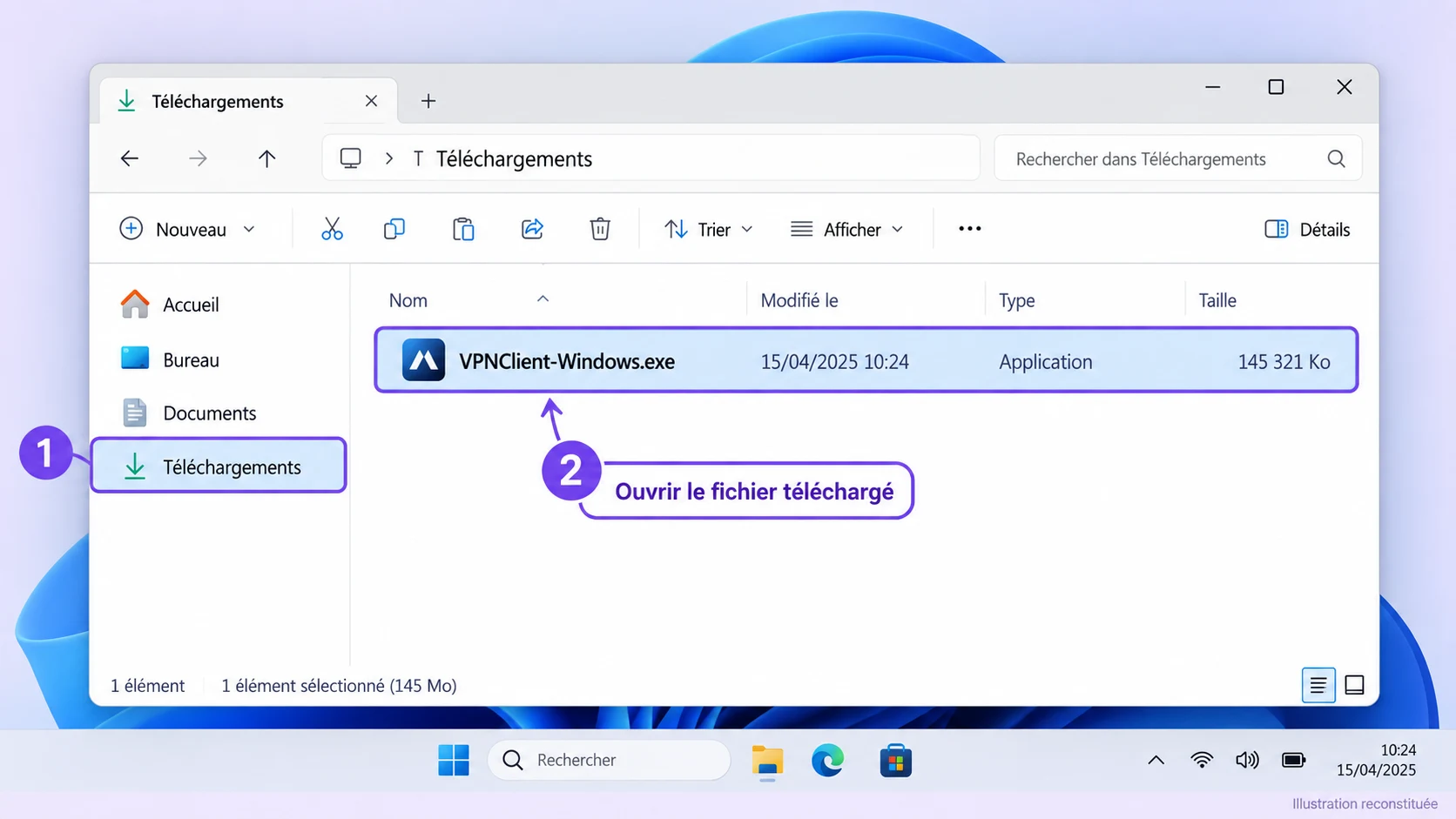
Windows reference point: open the downloaded file. The file’s icon, size and date may differ.
2. Prepare the first connection
Enter your Erqiva VPN credentials in the application, then go to first connection. If Windows requests installation of a network component during the wizard, read the request and verify its origin before accepting.
If installation is blocked: note the exact message and contact support from your customer area. Do not disable antivirus or Windows protections to force installation.
macOS
1. Open the Mac download
- On the Erqiva VPN Applications page, choose Download for macOS.
- In Finder, open Downloads, then the VPNClient-macOS.dmg file.
- Follow the instructions in the window that opens. A disk image may contain an application to copy into Applications or an installer to run: follow the actual process shown.
- Once installation is complete, open VPNClient from Applications.
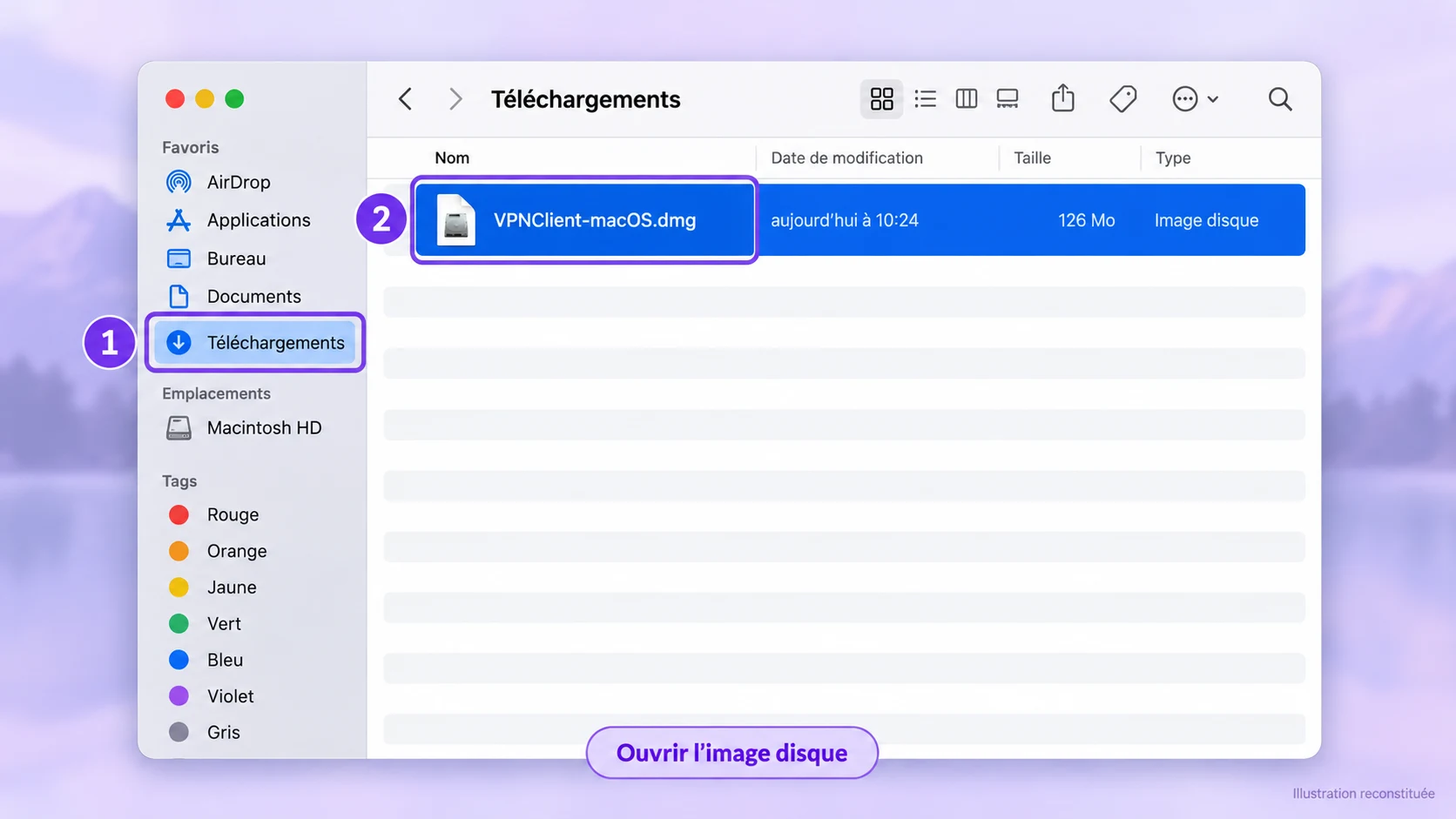
Mac reference point: the .dmg file opens the installation medium. Its contents determine the next step.
2. Connect using your VPN access
Enter the VPN credentials from your customer area, then follow first connection. If macOS requests permission to add a VPN configuration or a component required by the application, check the name of the software concerned.
If your Mac reports incompatible or damaged software, or software whose origin cannot be verified, stop installation and send the message to support. On a work Mac, some permissions depend on the device administrator.
Android
1. Install the correct application
- From your phone or tablet, open the Google Play link on the Erqiva VPN Applications page.
- Check the name VPNClient and publisher SpiderSilk Limited. Several applications have similar names: use the Erqiva link to reach the correct listing.
- Tap Install, then open the application once the download finishes.
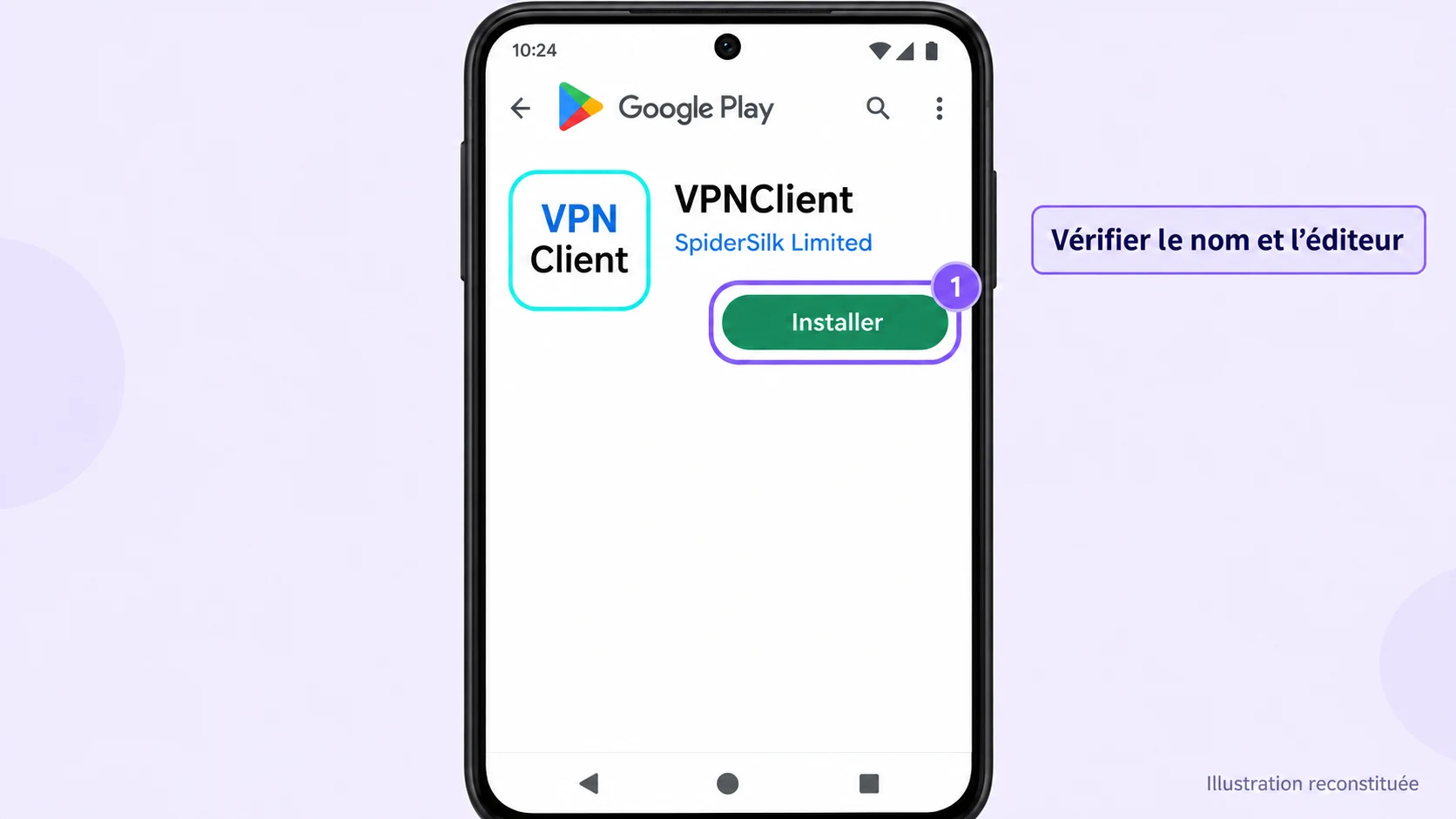
2. Allow the VPN connection
Enter your VPN credentials, choose a server and start the connection. On first use, Android may display a VPN connection permission request. Check that it comes from VPNClient, then confirm if you want to enable the VPN.
Wait until the application shows that the connection is established. A key symbol or VPN indicator may also appear, depending on the device. After switching from Wi-Fi to the mobile network, return to VPNClient to check that it is still connected.
To stop the VPN, use the application’s disconnect command. Labels and indicators may vary depending on the phone’s brand.
iPhone and iPad
1. Install from the App Store
- Open the App Store link from the Erqiva VPN Applications page.
- Check the name VPNClient - Secured VPN and publisher SpiderSilk Limited.
- Tap Get, or the download button if the application has been installed before. Confirm installation using the method requested by your device.
- Open the application and enter your Erqiva VPN credentials. Downloading the app does not replace active VPN access.
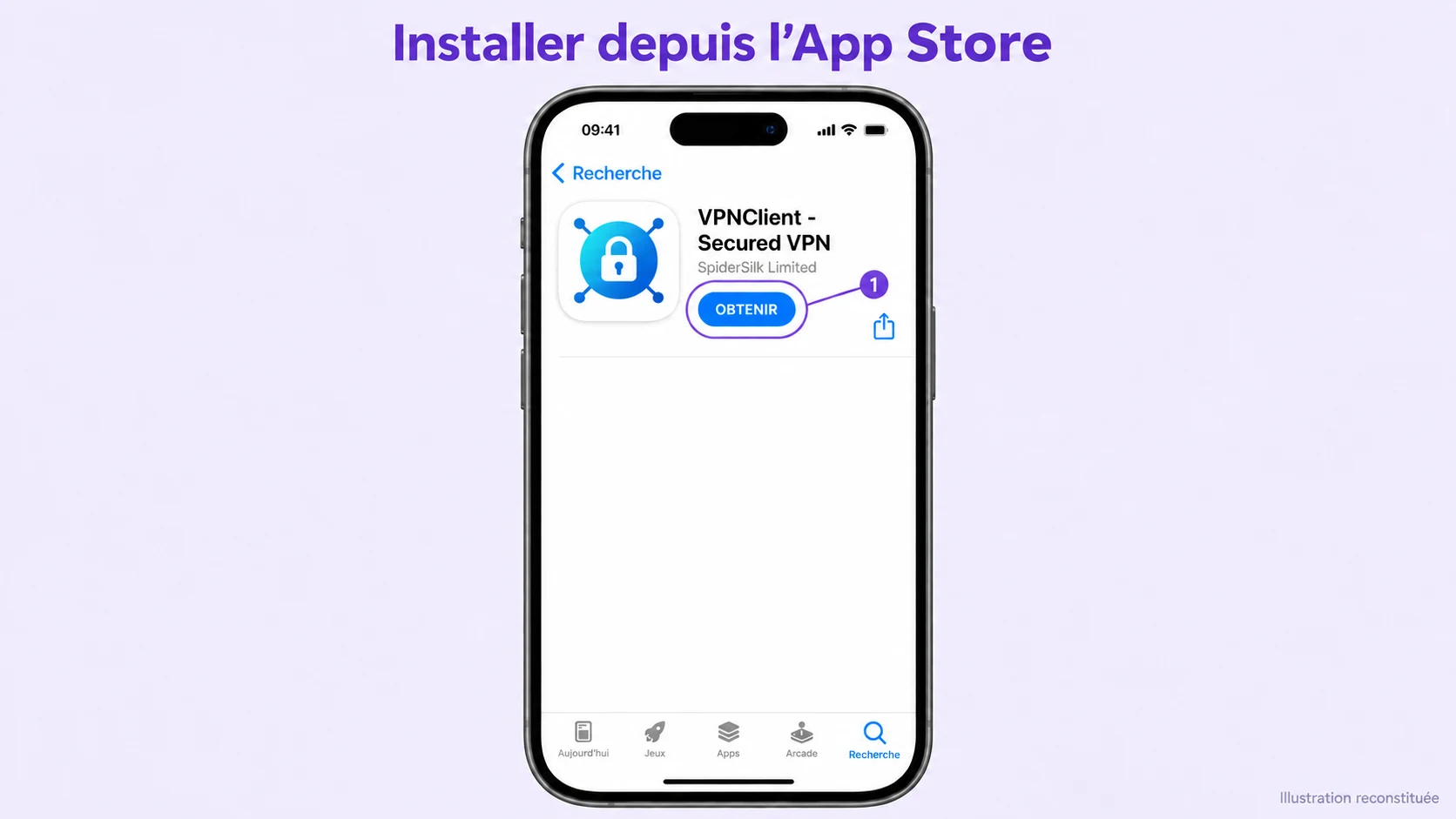
2. Allow and enable the VPN
Choose a server, then start the connection. If iOS or iPadOS requests permission to add a VPN configuration, check that it concerns VPNClient and allow it to continue. The system may request your device’s unlock passcode.
Then check the status in the application. You can also search for VPN in Settings to find the configuration and its status. To disconnect, use the appropriate command in VPNClient.
If the App Store says your device is incompatible, check the listing’s requirements. Do not randomly choose another application with a similar name.
First connection
The principle is the same on all four platforms: your VPN credentials, a server, then connect. With the VPNClient process shown here, you use your credentials; this is not about importing a configuration intended for another application.
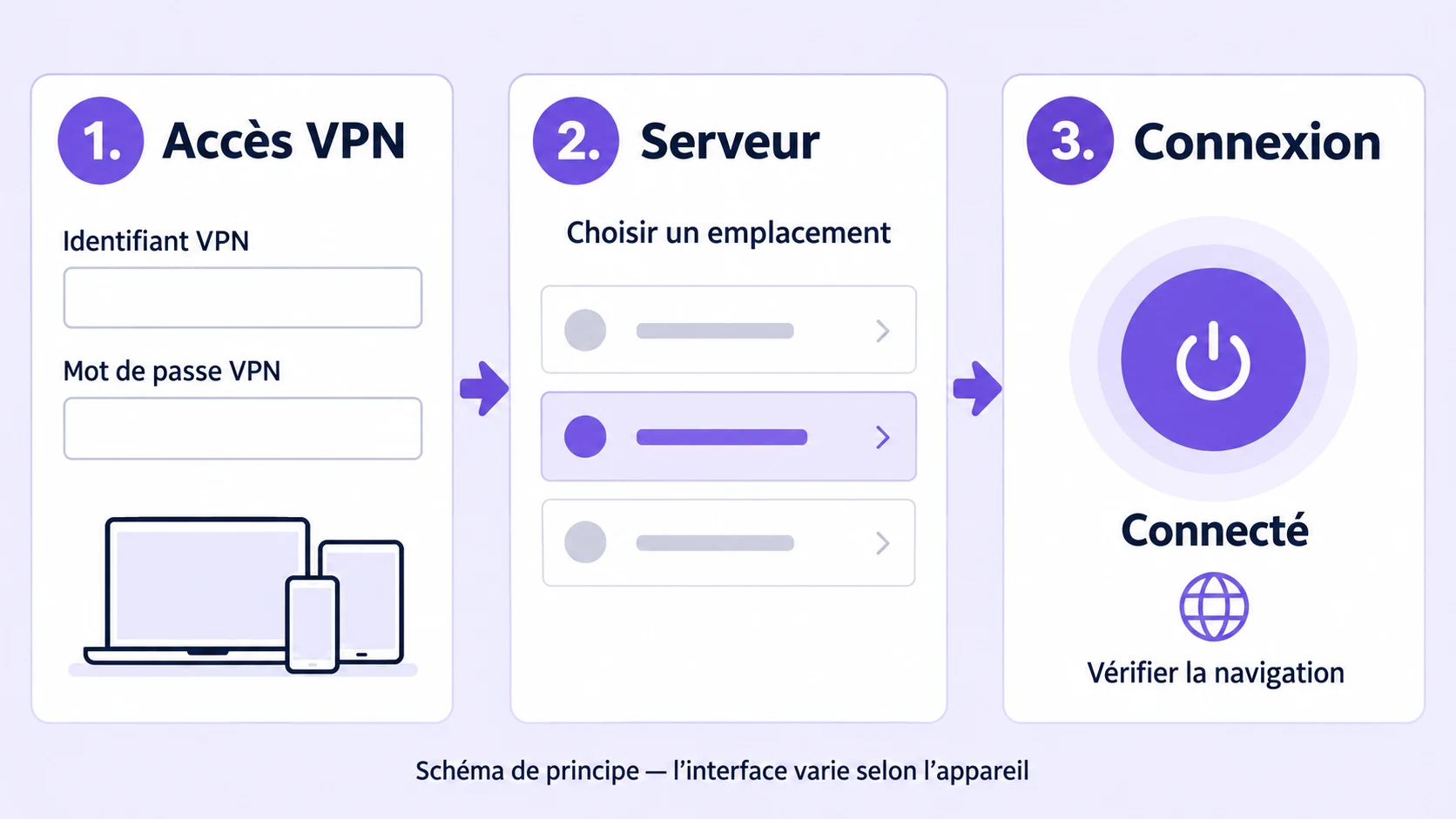
- Sign in using the credentials for the VPN service selected in your customer area.
- Choose a location from the available list. For an initial test, favour a server near you; the available locations are those shown in the application.
- Start the connection and wait for confirmation. An open application is not necessarily connected to the VPN.
- Open a familiar website to check that browsing works. You can also compare your public IP address before and after connecting using the same checking tool.
- Disconnect from VPNClient when you want to stop the VPN. Closing its window does not always end the connection.
After waking your device or changing networks, check its status again. For your first tests, keep the default settings rather than changing several options at once.
If you encounter difficulties
- Credentials rejected: check that you are using the correct service’s VPN credentials, without spaces added when copying and pasting, and that the access period has begun.
- Connection keeps trying without succeeding: first check Internet access without the VPN. On a hotel or airport Wi-Fi network, complete the network portal login before restarting VPNClient.
- VPN connected but browsing impossible: disconnect, try another available server, then reconnect. Avoid running two VPN applications simultaneously.
- Persistent problem: restart the application, check for updates, then contact support from your customer area. Give your device, operating system version and error message, without sending your password.
Using Linux, Android TV or Fire TV? The corresponding downloads are on the VPN Applications page. Installation depends on the device; the procedures above concern Windows, macOS, mobile Android and iOS/iPadOS.
Information checked on 16 September 2026. References: Erqiva applications, official Google Play and App Store listings, installation on Mac and VPN on Android help.