ERQIVA GUIDES
How do you check that your VPN is working properly?
Your VPN says it is connected, but how can you be sure? Three simple checks help verify that it works and spot common problems.

An installed VPN is not necessarily connected. To check your Erqiva access, combine three indicators: VPNClient’s status, the visible IP address and browsing. These checks help identify common problems; they are not a complete security audit.
The three essential checks
1. Check the status in VPNClient
Open the application and look for explicit connection confirmation: a “connected” status or its equivalent, depending on the version. Simply choosing a server, signing in to your account or seeing a button ready to start does not yet mean the VPN is active.
If the application is still connecting, wait until it confirms the session before moving to the next test. To find compatible applications, use the Erqiva VPN Applications page.
2. Compare the IP address before and after
Your public IP address is the one seen by the website you connect to. Here is a simple method:
- With the VPN disconnected, open an IP display tool, such as BrowserLeaks — IP address, and note the displayed address.
- Connect VPNClient to a server and wait for confirmation.
- Reload the same page, using the same device, browser and network.
- Compare the addresses. For browsing through the VPN, the visible address should correspond to its exit rather than your usual connection.
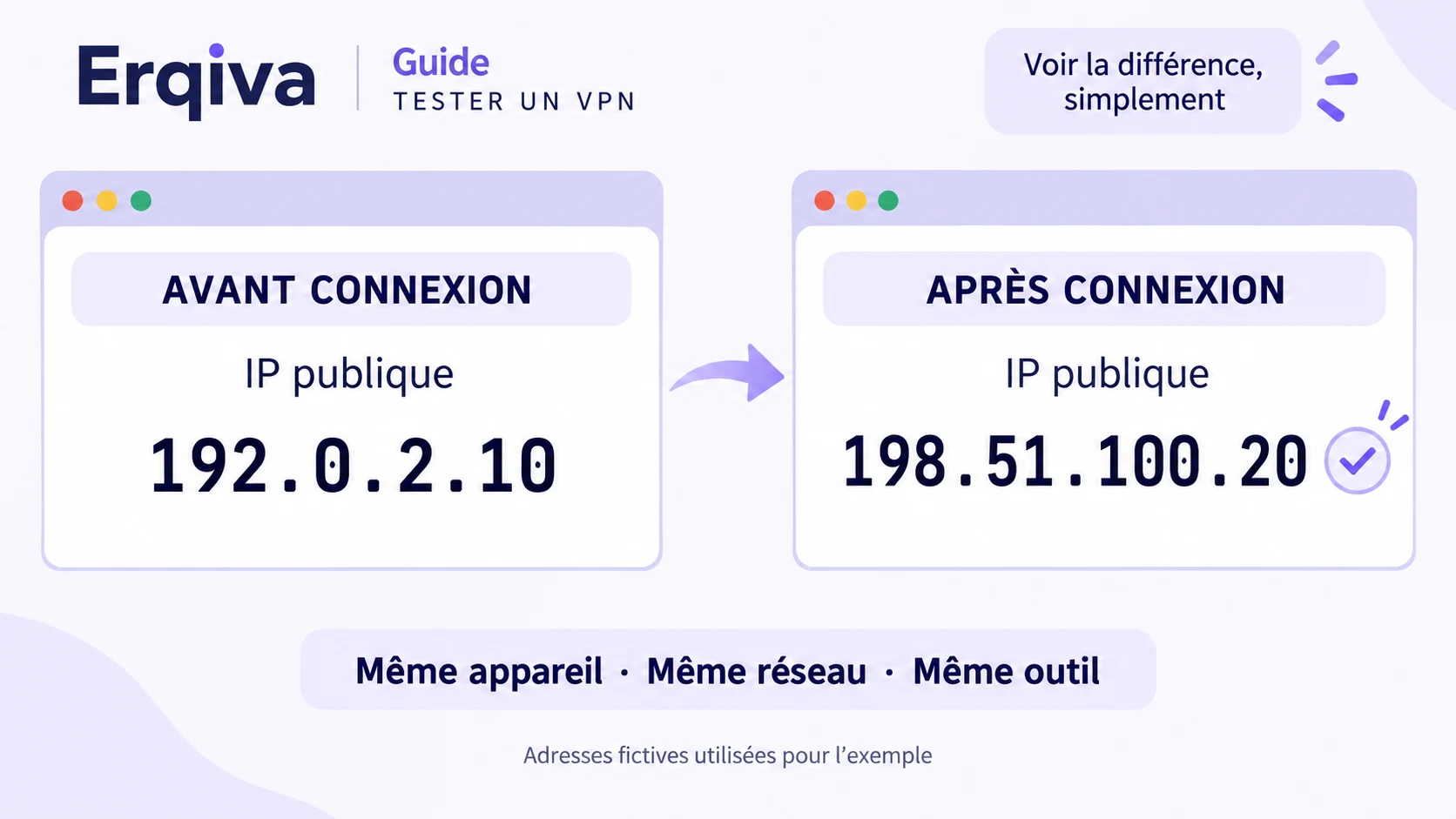
The addresses in this illustration are fictional. Compare your own results, not these values.
If the website displays IPv4 and IPv6, compare each type separately. A different IPv4 address is not enough to rule out an IPv6 problem. Conversely, the absence of IPv6 may simply mean it is unavailable on this route.
Do not rely solely on the country or city shown: IP address geolocation can be approximate. You can also choose a server in your own country and obtain a different IP without changing the country displayed.
3. Test browsing
Open two or three familiar websites. They should load normally. If just one platform refuses access, this does not prove the VPN is disconnected: it may restrict connections from a VPN.
Connected status + different IP + working browsing: these three consistent clues provide a good initial check of your browser’s route. They guarantee neither anonymity nor protection for every application.
If the IP address does not change
Follow this order:
- Check that VPNClient shows an established connection, then reload the test page.
- Disconnect and reconnect the VPN, or try another available server.
- If you use an application exclusion or split tunnelling option, check that your browser is not excluded from the VPN.
- Avoid combining several VPNs or proxies during diagnosis. Keep the same network for comparison: switching from Wi-Fi to mobile data already changes your starting connection.
- If your usual public address remains visible, contact support from your Erqiva customer area, giving the device used and the test steps.
Do not treat a simple VPN icon as sufficient confirmation if the results contradict one another.
Recognising a disconnection
A lost network, sleep mode or switching from Wi-Fi to mobile data can interrupt the session. After these changes, check the status in VPNClient and repeat the IP check if necessary.
A page continuing to load does not prove that the VPN is still active. Depending on the application and its settings, Internet access may continue without the tunnel or be interrupted by a kill switch. Check this feature’s availability and whether it is enabled on your device.
To stop the VPN deliberately, use its disconnect command. Closing the application window is not always enough.
DNS and WebRTC tests: interpreting results correctly
These tests complement the earlier checks, especially if you notice an anomaly.
DNS: which servers respond?
DNS translates website names into network addresses. A DNS test shows the servers responding to the test’s queries.
An unexpected name or country is not enough to conclude there is a leak: the browser may use its own encrypted DNS service. If results suggest your Internet provider is being used despite the VPN, have them examined. Avoid randomly changing several DNS settings.
WebRTC: which address is exposed?
WebRTC is used particularly for audio and video communications in the browser. A WebRTC test may display local and public addresses.
The point to examine is whether your usual public IP address appears while the VPN is connected. A private local address, such as 192.168.x.x, does not on its own prove this exposure.
A “no leak detected” result describes this test, in this browser, at this moment. It does not guarantee every use. These tools do not need your VPN credentials: never enter them on a test page.
If in doubt, keep the results and ask Erqiva for help. In a screenshot intended for support, hide passwords and unnecessary personal information.
Information checked on 16 September 2026. Further reading: how DNS leaks work and introduction to the WebRTC test.