ERQIVA GUIDES
Why use a VPN on public Wi-Fi?
At a café, hotel or airport, a VPN adds useful protection to your connection. Here are good habits for using a network you do not control.

Free Wi-Fi is convenient for checking a route, sending a document or waiting for your train. But you do not always know who manages the network or how it is configured. A VPN adds an encrypted tunnel between your device and its server for traffic passing through it. This is a useful precaution, combined with a few simple habits.
What changes on a public network
At home, you usually know your router and the devices using it. In a public place, that visibility disappears. The network’s name may be ambiguous, its administration unknown and its access shared with many visitors.
This does not mean all your data travels unencrypted. Encryption used by many websites and applications already protects a large proportion of communications. However, a network bearing an establishment’s name is not necessarily the right one: someone can create an access point with a similar name.
Your first habit should therefore be to check the exact Wi-Fi name with staff, rather than choosing the strongest signal.
What a VPN actually adds
When the VPN is connected, supported traffic travels through an encrypted tunnel to the VPN server. The Wi-Fi operator cannot then read the tunnel’s contents or directly observe the destinations passing through it. They can nevertheless detect a connection to the VPN server and certain details such as its volume and duration.
Visited websites generally see the VPN’s exit IP address instead of the local network’s. This does not make you invisible: a signed-in account or cookies may still identify you.
With your Erqiva access, the main idea is to use a familiar routine on networks encountered while travelling: open the application, connect, then check its status. To understand the principle, see our guide What is a VPN and what is it for?.
Three steps before browsing
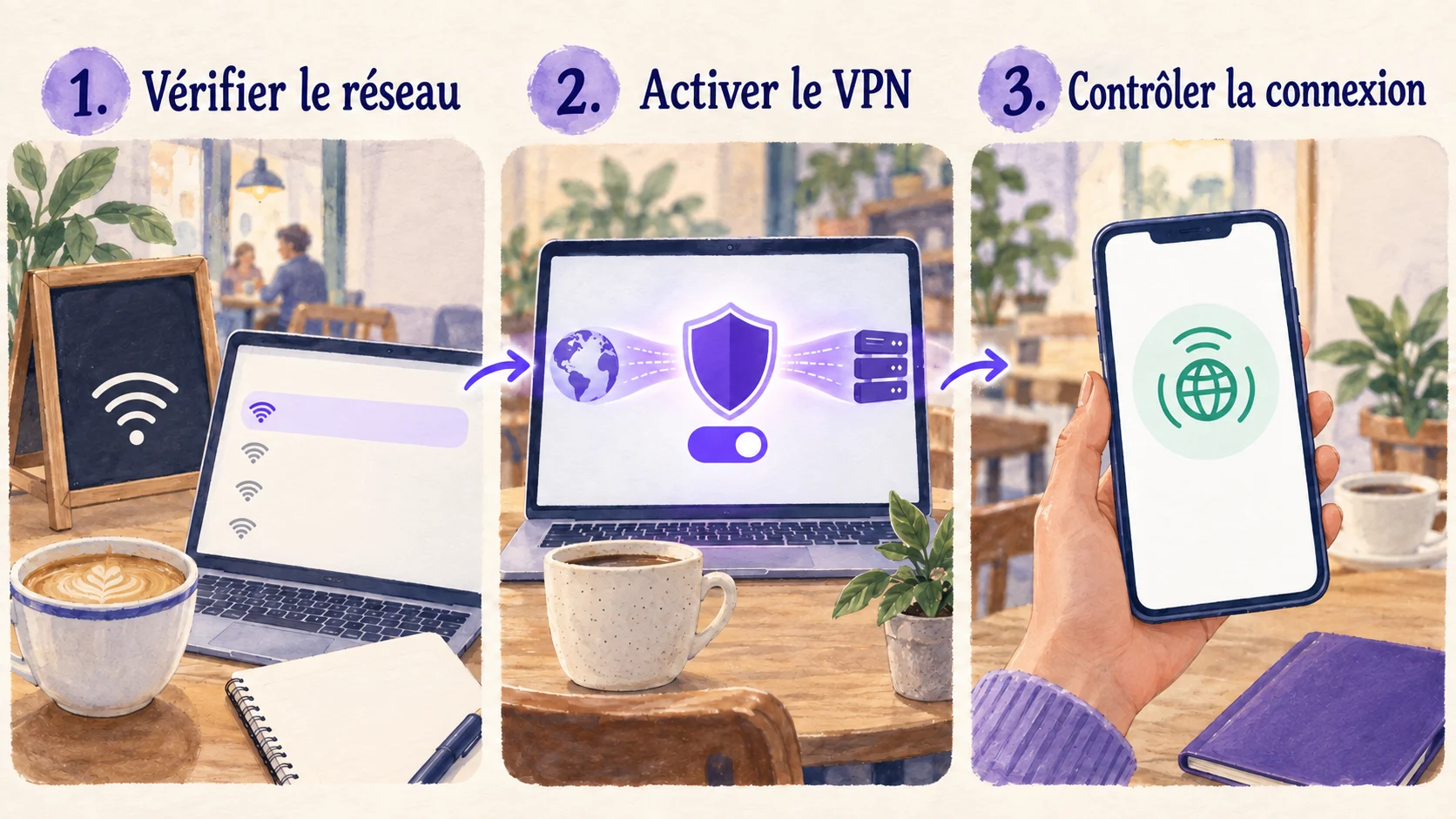
1. Join the correct network
Ask for the official Wi-Fi name. If a welcome page is required to get Internet access, complete this step before starting the VPN. A hotel portal may request a booking reference; that does not justify giving it your email or VPN password.
If the portal seems unusual, ask staff for confirmation. Do not bypass a browser security warning to continue.
2. Enable your VPN connection
Open the application compatible with your Erqiva access and start the connection. Wait for connected status: simply opening the application is not enough.
If it is not configured yet, follow the steps in our computer and mobile installation guide, ideally before your trip.
3. Perform a quick check
Open a familiar page, then check that the VPN remains connected. Switching from Wi-Fi to mobile data, waking the device or changing access points may interrupt the tunnel or trigger a reconnection.
Our guide to checking that your VPN works also explains how to compare the visible IP address.
Good habits that remain useful
- Disable automatic connection to saved public networks when you no longer need them.
- Keep the operating system, applications and device protections up to date.
- Avoid file sharing and device discovery on a public network.
- Check the website’s address before entering a password; a VPN does not make a fake website legitimate.
- For a sensitive task on questionable Wi-Fi, prefer a trusted mobile connection, taking your plan into account.
If the Wi-Fi blocks the VPN
First check that you have completed the access portal. Then try reconnecting the application or choosing another available server. If the network prohibits VPNs, respect its rules and use another authorised connection.
A VPN does not repair an unstable network or remove phishing and malware risks. Its purpose is specific: better protecting your connection’s journey over infrastructure you do not control.
Further reading: the FTC’s explanation of public Wi-Fi also discusses the role of encryption already present on the Web.