ERQIVA GUIDES
Slow VPN: possible causes and solutions
A slow connection is not always caused by the VPN. Compare your network, server and application in the right order to find what is limiting your usage.

A video that stops, a page that takes time to load, a call that drops: these symptoms can have several causes. The right approach is to compare, then change just one setting at a time. This avoids changing your entire configuration without knowing what actually helped.
Throughput, latency or instability?
The word “slow” covers three different situations. Identifying the one affecting you makes troubleshooting more effective.
| What you notice | What to observe |
|---|---|
| A download takes a long time | Available throughput, meaning the amount of data transferred per second |
| An action takes time to receive a response | Latency, often called ping, measured in milliseconds |
| A call or video cuts out occasionally | Network stability, delay variations and packet loss |
Good throughput therefore does not guarantee a smooth call. And a drop measured in a test is not necessarily troublesome if your usual activities remain comfortable.
Make a useful comparison
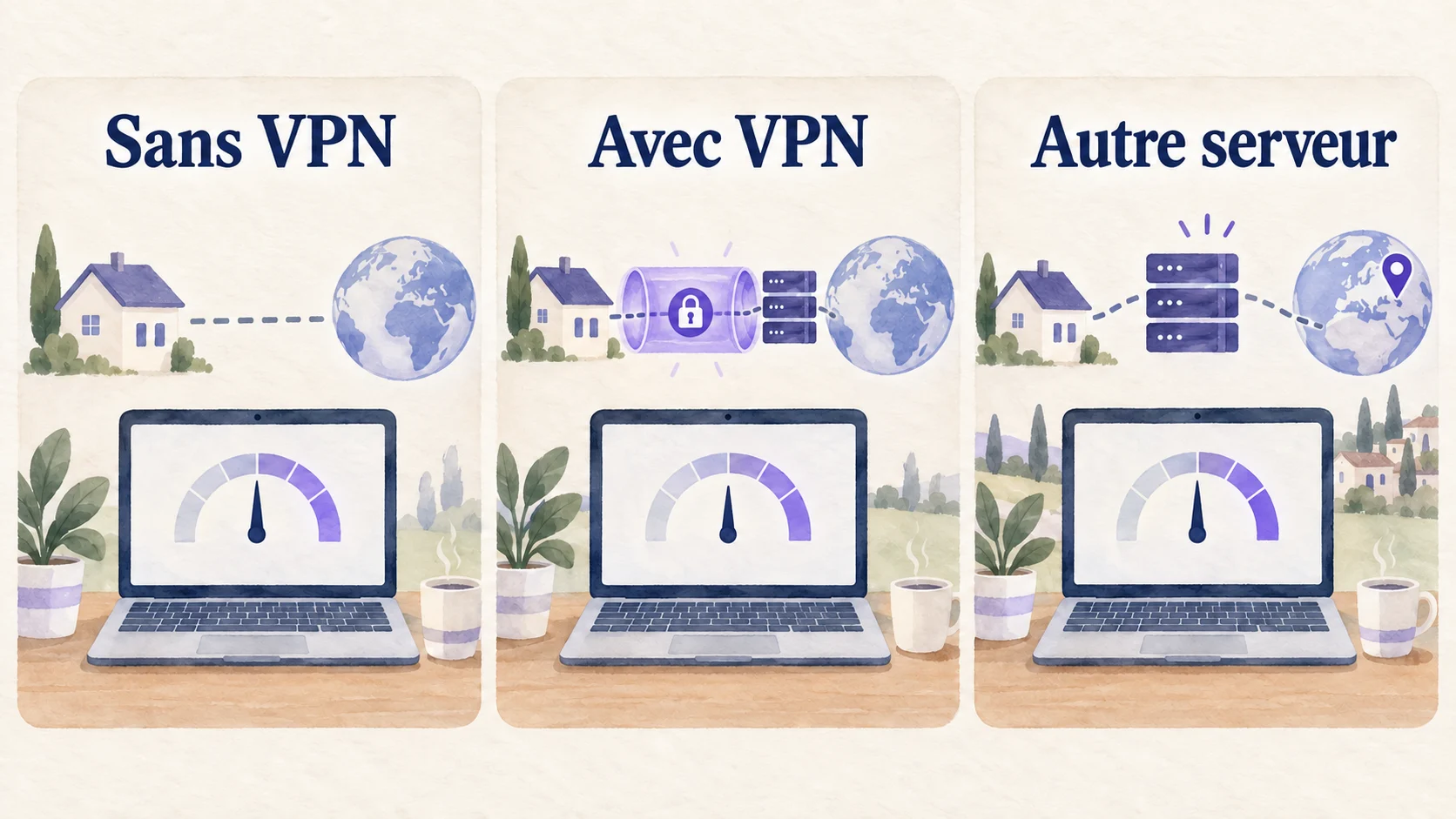
- Choose the same device and network. Pause large downloads and non-essential synchronisations.
- Test without the VPN, then with it, using the same tool and, if possible, the same test server.
- Note throughput and latency, but also observe how the application causing problems behaves.
- Repeat once if results vary greatly, without running unnecessary extra tests.
During the test without the VPN, its tunnel no longer protects your traffic. Perform this comparison on a trusted network and reconnect afterwards. Speed tests can consume a lot of data: take care on a limited mobile plan.
The illustration shows the comparison method, not an expected result or a promise of acceleration.
If Internet access is already slow without the VPN
Start with the local network. Move closer to the Wi-Fi access point, try Ethernet if your equipment allows it, or test another trusted network.
Hotel Wi-Fi shared by many visitors, a weak mobile signal or several devices downloading simultaneously can reduce performance. A VPN cannot create additional bandwidth.
You can restart your own router if possible, warning other users first. On a company or establishment’s network, ask its administrator for help rather than changing its configuration.
If the slowdown appears with the VPN
Try a closer server
The detour through the VPN server adds distance. A geographically close server is often a good starting point, although distance does not explain everything. Traffic routing and server load also matter.
Try another available server in your Erqiva application, then repeat the same test. Avoid changing the network and server simultaneously: you would no longer know which change explains the result.
Check the application’s options
If several protocols are offered and supported for your access, test another documented option. A protocol is the way the VPN tunnel is established; its performance can vary by network.
Do not copy random settings found for another provider. Our VPN installation guide helps you return to the steps intended for your access.
Update and restart
Install the application’s official updates, then restart it. Restarting the device may also resolve a temporary problem. Check that another personal VPN is not running simultaneously; on a work device, follow your organisation’s instructions.
Keep antivirus and firewall protection active. Disabling them permanently to gain a little throughput is not an appropriate solution.
If just one website or service is slow
Test another page or application. If everything else works normally, the remote service may be busy or restrict certain connections. A localised problem does not demonstrate that the entire VPN is malfunctioning.
After a change, check the VPN’s status and visible IP address. If the problem persists, contact Erqiva support with your device, application version, network type, server used and comparative results. Do not send any passwords.
Further reading: understanding latency with Cloudflare.